
Managing a website on top of all of your other responsibilities as a professional practice owner may sound daunting, but it doesn’t have to be. If you’re wondering how to edit a Squarespace website, the good news is that it can be simple! Better yet, there are different options available to you for website management.
Introduction to Using Squarespace
Squarespace is an all-in-one website builder that’s powerful, intuitive, and remarkably user-friendly. As a website and branding studio, Squarespace is the platform we consistently recommend for financial and legal firms.
Making edits on Squarespace is easy to do. There’s no coding required, so many of our clients find they’re able to make updates without assistance. If you do want support in managing your website, there are options for that, too.
What to Do Before Building Your Website
Your website can be the most powerful tool for your business, but only if it’s built strategically. Before you start building your website, there are a few things to do first.
- Start with brand clarity. Brand clarity is the strategic foundation that defines who you serve, what transformation you provide, and how you communicate your value in a clear and understandable way. When you have brand clarity, the right clients will easily decide that you’re the firm they need to hire.
- Choose a hosting platform. Squarespace and Wix are two of the most popular website platforms for professional practices, and Squarespace is the one we recommend for our clients. This post breaks down the differences between Squarespace and Wix to help guide your decision.
- Decide on a template or custom website design. Some factors to consider when choosing between editing a template or outsourcing website design are time, budget, and desired outcome. If you have a few clients under your belt and need a professional, strategic website for your firm, custom design is the way to go.
How to Edit a Squarespace Website
Whether you’ve outsourced the initial website build to a designer or want to create your site yourself, it’s helpful to know how to make simple edits on your Squarespace website. Here are some of the most common things you may want to edit over time.
In order to follow along, make sure you’re logged into the Squarespace website you’d like to edit.
Site Styles
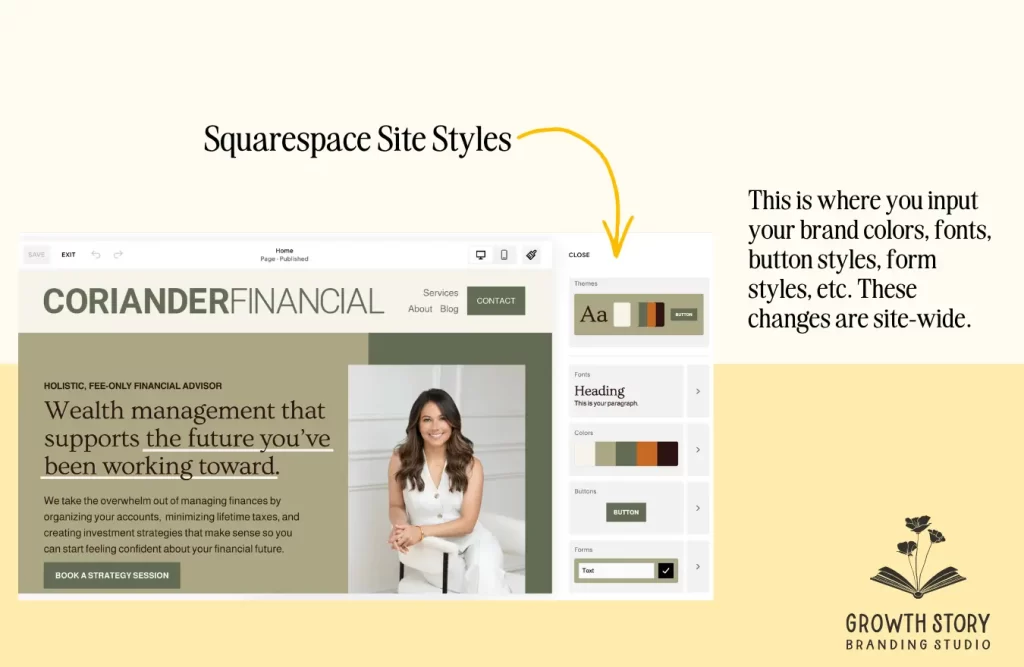
The Site Styles section of your website is where you change the design of your elements across the entire site. These elements include colors, fonts, button styles, form styles, etc. In order to properly update these, you must have a strong brand book and style guide for your business. If you don’t already have this in place, that’s something we create for you at Growth Story!
After logging into your site, click the paintbrush icon in the top right-hand corner. From here, you can go into those different elements to make changes across your entire website.
Logo
If you’d like to change your logo, go to edit a page on your website, hover over the header, and click “EDIT SITE HEADER”. Then, hover over your logo, click the pencil icon, and from there you can replace the logo image file and additional settings.
To change the header layout, click “EDIT SITE HEADER” again and select “EDIT DESIGN”. From there, you’ll see different layout options that shift your logo to the left or center and adjust where your links are in relation to your logo.

Call-to-action (CTA) Buttons
If you’d like to edit the design of buttons across your entire site, you can make those adjustments within the Site Styles tab. To edit specific button text and/or the links they’re connected to, click edit on the desired page, select the button, and click the pencil icon. There you can add your call-to-action text and link.
In order to know which CTAs to add to your buttons, you must have a website strategy first. This is why we always start with strategy for our clients before design; it ensures your site is both beautiful and functional.

Search Engine Optimization (SEO)
Adding SEO elements on your website pages ensures that search engines can get your site in front of prospective clients. To edit the SEO elements on an individual page, hover over the page in the website editor and select the settings wheel. Under “Page Settings”, navigate to “SEO”. There, you can edit the SEO title and description—two key components to optimize for Google.
Within the text on each page, you can highlight the text and change the headings (H1, H2, H3, etc.). Be sure that each page only has one H1 using a keyword from your SEO strategy—something else we build out for all of our clients.
New Pages
To add a brand new page to your website, first decide if it will be part of the main navigation (showing up linked in your header) or not linked (public unless disabled, but not showing up in your header). Then, next to either “Main Navigation” or “Not Linked”, click the plus sign. From there, you may create a blank page or start with one of the templates provided.
If you’d like to duplicate an existing page instead, hover over that page and click the settings wheel. Scroll down, and select “DUPLICATE PAGE”.
Blog Posts
First, ensure you have a Blog page on your website. If not, create that following the steps above. Then, click into your Blog page. You should see your posts pop up on the left-hand side. To add a new blog, click the plus sign next to “Blog Content”.

Photos
To add a new photo to a section of your website, hover over the section and select “ADD BLOCK” > “Image”. There, you can select the pencil icon and upload your image.
If you’d like to swap out an existing image, select the image and click the pencil icon > “REPLACE”. That presents the option to select another image from your site’s gallery or upload a new one from your computer.
Website Management Options
If you own a professional practice, you are likely too busy building your team and taking calls with clients to manage your own website. The good news is that you don’t have to do it alone, and there are website management options available to you if you’re looking for more support.
Outsource to a Website Designer
The best thing you can do is outsource to an experienced website designer. Not only will a designer make your website look beautiful, professional, and on-brand, but they also will design it with strategy in mind.
At Growth Story, we take care of everything from the initial website design (including brand strategy, brand design, copywriting, and SEO) to managing ongoing updates for you. If you prefer to update your website yourself after it’s complete, we’ll educate you on how to easily do that during our Website Handoff Meeting.

DIY Your Site
The other option is to manage your website edits and updates yourself. Squarespace is a very user-friendly website builder, so this is possible—it will just require some additional time to learn the platform and make edits when needed.
Ready to Build Your Professional Website?
If you’re looking to build a professional website that clearly communicates your expertise and brings in prospective clients, click here to book a free consultation with Allie, the founder of Growth Story. Our specialty is building websites that help you stand out from your competition and function as a tool to grow your business.
FAQs about Editing a Squarespace Website
Squarespace is a very simple website builder to use, with a drag-and-drop and intuitive interface. While it’s very user-friendly, it does not sacrifice capabilities and features and remains the top website builder for professional practices.
Yes! Squarespace is the best website builder for professional firms, as it’s both powerful, easy to use, and beautifully designed. Squarespace websites are mobile-friendly and can easily be optimized for SEO, so your firm’s website is found on search engines such as Google.
Yes, Squarespace contains SEO capabilities allowing you to optimize your pages, blog posts, and images for SEO. You can easily edit your URL slug, meta titles, meta descriptions, and alt text within the platform.
To edit an existing website on Squarespace, first login and access your website via your dashboard. Then, go to “Website” > “Pages”. From there, you can make edits to your sitewide settings via Site Styles, or make changes to individual pages by selecting the page you’d like to edit.